Keep Calm and Teach Math beach scene with turquoise chair, math books and sunglasses

Inspiring Middle School Math Teachers. Engaging Students.

Classroom-tested teaching ideas, engaging math activities, and low-prep resources that make planning easier and learning more fun.

Grab a Free Math Resource!

Help your students practice graphing and writing inequalities with this free print-and-digital middle school math resource!

Graphing and Writing Inequalities free printable and digital math activities Grab Your FREEBIE!

Shop Math Resources

Explore engaging, low-prep activities designed to make middle school math practice easier to plan and more fun for students.

Friday, April 11, 2014

Open iBook Test

Last year over Spring Break, I created my first ebook with iBooks Author. I was going to be starting a unit on linear functions when I returned from break, so I designed a linear functions chapter of the book. After creating the chapter, I then created notes sheets for my students that mirrored the book, and the videos that were in my ebook were also added to my website for extra help when completing their homework. 

Throughout the unit, my students used the notes sheets. When it came time for the unit test, I allowed them to use my ebook as an open book test. The test was separated into sections which corresponded to the sections of the chapter in the ebook. If they were working on a problem and just couldn't remember how to solve it, they could refer to the corresponding section of the ebook. I demonstrated to them how to have the ebook read the text to them and how they could watch the videos in the ebook for a refresher on how to solve that type of problem.


Since my ebook is not even close to being finished (it only has that one chapter!) I have never published it, which would make it easier to download onto the iPads. In order to get it onto the iPads, I had to connect each and every iPad to my Mac and click on "Preview" in iBooks Author to get it to load onto the iPads. Last year, it was a fairly easy process. This year, our iPad carts are all being supervised, so I ran into a slight glitch when trying to load the ebook onto the iPads. I received the following error message:


After doing a little research, I discovered that this error was due to the fact that our iPads are supervised. With the help of our tech guy, John, we were able to use the Mac that is used to supervise the iPads to load my ebook onto all the iPads. Phew! What a lot of work for only two days worth of using the ebook! I guess I should focus on created more chapters so I can get more use out of it...


Thursday, April 10, 2014

PD on Plickers

Yesterday I introduced "Plickers" to the teachers attending my professional development class. For those of you who are not familiar with Plickers, they are "paper clickers" - a way of using a student response system without having technology in your classroom such as smart phones or tablets (only the teacher needs a device). You can print out a complete set of 40 Plickers on the Plickers website. The Plickers look something like giant QR codes (see photo at right). 

Even though Plickers is so "untechnical" to the observer (students are not using any devices), it really is pretty high tech. One of the teachers even commented "I like going back to the old fashioned way of just using paper". My professional development class is focused on using iPads in the content areas, so I wasn't sure how this idea would be received, but they loved it! I had them all be the students and try it out. I had my phone reflected up on the screen so they could see exactly what was happening on the teacher end of it. They were amazed at the speed and accuracy of it, and how far away I could stand and still be able to scan everyone's Plickers.

One teacher had a fantastic idea. He noted that some younger students or those with disabilities might have a difficult time trying to manipulate the Plicker with the answer choice at the top when it has to be facing away from them so they can't see it. (I think even middle school and high school students might have difficulty as well.) He suggested that we write the A, B, C, and D on the back of the Plickers (the side that would be facing the student) in the correct positions so they can see it facing them and still allow for the teacher to see the side that needs to be scanned.

It's very easy to set up and use Plickers. Download the Plickers app, then check out the Plickers website to create your account, to print out your class set of Plickers, and to add classes and students.  Your students will think its cool!

Thursday, April 3, 2014

PD via FaceTime

Yesterday, our wonderful technology teacher, Ruth Davis, who has been attending my professional development class, approached me and asked if I would be open to going a little more high tech today for my class. I asked her what she had in mind. She explained that she absolutely had to be at home at 3:30, but didn't want to miss my class, so she asked if I would be opened to having her FaceTime into the class. "Of course, I would love to try that!" was my reply.


We did have some connectivity issues - we lost connection approximately every 15 minutes for some reason - but overall we feel it was very successful. She was able to see my presentation and me on her Mac. She also had the slides for my presentation which were on my website open so she could scan the QR codes and see the slides better. It was like she was in the room with us - everyone was able to interact with her - she asked some questions, gave some input on certain topics to the rest of the class, and we even got to hear her dog drinking water from his bowl!

Ruth and I spoke this morning about how well we thought it went, and about the possibilities this could lead to for our district's professional development. We are a Google Apps for Education school, but because this is our first year, the district hasn't opened up to us all of the vast options that GAFE offer, such as being able to participate in a Google Hangout. This would be a great improvement over using FaceTime. We could have a professional development session recorded for others to view at a later time if they could not participate live, and participants who had to be elsewhere could still participate in the live sessions.

If anyone else has used this concept of remote professional development, whether with FaceTime, Google Hangouts, or something else, we would love to hear about your experience. Please let us know!

Sunday, March 30, 2014

Google Calendar for Apple iCal Lovers

If you read my last post about my first impressions of Gmail (I hope you did!), you know that I was a much bigger fan of my Apple mail than I was of Gmail, to say the least. Well, that goes for my Apple iCal app as well. I love the way I can keep all of my personal and professional calendar entries in one place. When my district went to Google Apps for Education and began sharing Google Calendars with us, I resisted. It was just another calendar, and I wanted to stick to my one and only iCal.

Thanks to our "Teacher Training Bootcamp", I have learned about the enormous number of useful features that Google Calendar has that makes my old iCal look like an amateur! 

I really like some of the features that allow Gmail and Google Calendar to work together. If I get an IEP meeting request, it can instantly be scheduled on my calendar, multiple reminders (email, text, and a pop-up) set so I don't forget to attend, and I can make sure I remember to write the IEP by adding it to my task list. Good old iCal couldn't do all that! So I really wanted to utilize Google Calendar for work, but didn't want to deal with my schedules in two places, Google Calendar for work and iCal for my personal life.

As I was learning all about Google Calendar in my quest to get Google Certified, I discovered how to transfer all my iCal calendar entries to my new Google Calendars. Now I could manage all parts of my life in one place with so much more functionality -- a dream come true!

To transfer all of your iCal entries, open your calendar on your Mac. Highlight the calendar you want to export. On the top left menu, choose File > Export > Export.


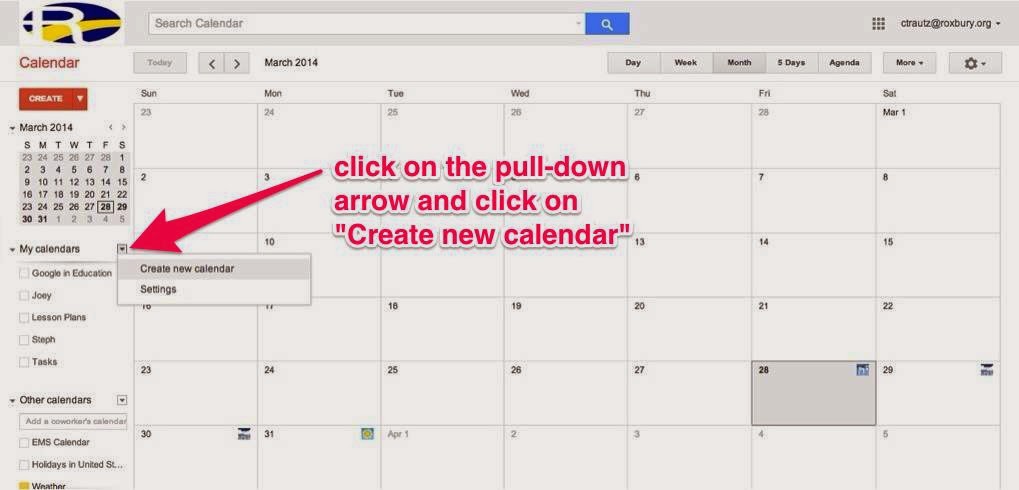
Go to your Google Calendar. Click on the pull-down arrow to the right of "My Calendars" and click "Create new calendar". 


Then go down and click on the pull-down arrow to the right of "Other Calendars" and click on "Import calendar".


In the pop-up window, click on "Choose File" and select the calendar you exported from iCal (.ics file). Then click on the pull down below to choose the new calendar you created to import into. Then click on "Import" at the bottom to complete the process. Repeat this process for each iCal you want to import into Google Calendar.


Congratulations, you now have your iCal events in your Google Calendar! 


Wednesday, March 26, 2014

Lesson Learned

If you read my last post, you know my students were in the middle of a cool app-smashing project involving Desmos, Skitch, and Showbie. At the end of class, they saved their work to the camera roll to finish up the next day.

In our building, we have three iPad carts with 30 iPads each. The iPads are numbered in the settings, and at one time they had numbers on the lock screen and home screen. Unfortunately, many students feel the need to change the photos on the screens, making it difficult to quickly and easily identify the iPad. Also, when students are done using the iPads, they don't get returned to the correct slot in the cart either, so it's like finding a needle in a hay stack to find the exact iPad you need. I always remind my students to check the number in settings and record it on the sign out sheet in case we need to use the same one the next day (as in this case). Some did, others didn't. 

Our wonderful technology teacher Ruth Davis just happened to be in my classroom at the start of class because she was bringing the iPad cart to me. She and I spent a good 10 to 15 minutes going through all the iPads trying to find the iPad that each student had saved their work on the day before. It was a disaster! I finally gave up and scrapped the idea of finishing the project.

Lesson learned: don't save work to the device, save it to the cloud!


The project was supposed to include the student saving their completed project to Showbie. I had lost track of time towards the end of class and in my haste, I told them to just save it to the camera roll instead of signing into Showbie and adding it to today's assignment folder. I will never do that again. Showbie is such a great app, and every project we have ever done could be saved to Showbie for safe keeping. Then it wouldn't matter which iPad, or which cart for that matter, the student ended up with the next day -- they would always have access to their work. Lesson learned.

Monday, March 24, 2014

App-smashing with Desmos

Click on the image above to open the PDF
On Friday, we learned the basics of slope - how to find slope from a table or a graph. Today, I wanted to reinforce the concepts and help them make the connection between the table and the graph, so I designed an app-smashing activity for my students using Desmos, Skitch, and Showbie. 

First, I walked the class through completing the worksheet (see left). They were basically picking random numbers to help them build their own personalized input-output table. Their choices for boxes A and B became their first ordered pair. Then their choice for C and E became their rate of change for the x-coordinates, and their choices for D and F became their rate of change for the y-coordinates. They completed their input-output table and found the slope. They then completed the same thing on the opposite side of the worksheet so they had two input-output tables to work with. The only stipulation I gave them was that if they chose the same signs for E and F on one side, they had to choose different signs for the other side (so they ended up with one positive slope and one negative slope).


Next, they opened up Desmos and I walked them through how to recreate their two tables that they had just created on paper. I had them change the graph to be a connected line with points instead of the default of just the points being displayed. They needed to make sure the axes were labeled in increments of 5 so it was easier to count the rise and run. When both tables were set up, they took a screen shot to save it to the camera roll.

The next step was to open up Skitch, import the screen shot, and label the following things: the change in the x and y values in the tables, the rise and run of each line, the slope of each line, and whether the slope is positive or negative. I asked them to color code the labeling so the color they used for the table and the line matched.Then they tapped share and saved the image to the camera roll again.

The final step was to go into Showbie, open today's assignment, and tap the + sign at the top right to add the photo from the Photo Library. They just had to tap done, and it was submitted to me.

It sounds like a lot of steps, but everyone did well with the process. A few students actually finished the whole project by the very end of class. Most of them will finish it up in the first few minutes of class tomorrow. They really liked working with Desmos, so I will be definitely planning some other app-tivities with it in the future.


Sunday, March 16, 2014

First Impressions of Gmail

First impressions aren’t always accurate...

I have to admit, I wasn't a big fan of Gmail at first. When my district first started using Gmail, I didn’t like it, I didn’t want to use it, I wanted nothing to do with it. That’s because I didn’t know enough about it. I didn’t want to stop using my Apple mail app, which I had grown very attached to.

I’m so glad I decided to take part in this journey with my fellow educators to become Google certified. I’ve learned so much already and it’s only our first topic! I feel much more confident with Gmail and actually really like it more than my Apple mail now!

I think I'm label crazy! I love using labels to categorize my email and appreciate the fact that I can use more than one label for each email. I also find being able to use filters to automatically handle any incoming email a real time saver.

Right now my favorite feature of Gmail is the task list. So many times I have forgotten to add a task to my to do list after I read an email. Now I can do it as soon as I read the email. And I love being able to cross off completed tasks - makes me feel so productive!

With all of Gmail's features, it's like having a personal assistant. I just switched over my personal email from Yahoo to Gmail so I can take advantage of all Google has to offer me in my personal life too.

Earlier this week, a colleague asked me to help her with a problem she was having with her Gmail account. If she had asked me that same question a week ago, I would not have been able to help her. But thanks to all I have learned from the Gmail training, I actually could help her! We were both thrilled!!

So, if you're not already using Gmail, you should give it a try. And if you are already using Gmail, keep reading through all of our posts to learn how you can utilize Gmail to its fullest. Follow our blogs over the next several weeks to learn about great features of all the other Google apps too!


Saturday, March 15, 2014

Google Certification

I normally only blog about the experiences I have with technology in my classroom. But for the next several weeks, I will be joining a great group of educators around the country in blogging about our experiences in our quest for Google certification. We will be contributing to a blog series entitled "Teacher Training Bootcamp" as we journey through the training sessions for our Google certification. We will share the tips and tools we discover that will help you in your classrooms. Here's the schedule:

      • March 16 - Gmail
      • March 30 - Calendar
      • April 13 - Drive
      • April 27 - Sites
      • May 11 - Misc. electives

Check out this YouTube video preview of our endeavor, created by our organizer Jennifer Kimbrell: http://youtu.be/AEVe0EZtkMs

So join us for our bi-weekly link-up and find out how to use Google to make your life easier and more organized!